
1. Identify the Errors
To access the error file:
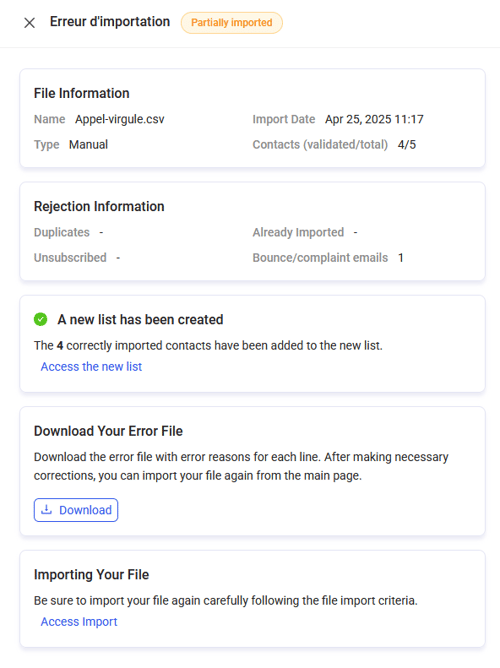
- Go to the ‘Distribution’ and ‘Import history’ sections of your survey and find the import in error;
- Click on the import 👉 a window will automatically open on the right;
- Click Download in the Download Your Error File section to obtain the file detailing the specific errors of the import.
💡 If you contact support for assistance, feel free to use your error file.
2. Analyse the Error File
The error file will contain precise information about the issues encountered for each contact. Here are some common errors and their solutions:
- Duplicates: Contacts that appear multiple times in the file will be ignored. Check and remove duplicates before re-importing;
- Unsubscribed Contacts: Contacts who have unsubscribed will not be imported. Verify your list for these contacts;
- Invalid Email Addresses: Incorrect email addresses marked as bounced or complained will not be imported. Correct or remove these addresses;
- Metadata Errors: If certain metadata is incorrect or missing, adjust the values according to the guidance provided in the error file.
For a comprehensive list of potential errors and their explanations, consult the Error Management section.
3. Correct the Errors in Your Contact
- FileUse a text editor (like Notepad++) or a spreadsheet program (like Excel) to modify your contact file;
- Make the necessary corrections based on the information provided in the error file;
- Ensure that the file is saved in UTF-8 format to avoid encoding issues.
For automatic imports, remember to prepend the survey code xxxx_ to the beginning of your file names; otherwise, the file will not be processed.
4. Re-import the Corrected File
- Go to the file import screen in Journey;
- By clicking on the erroneous import, a window will automatically open on the right;
- In the "Import Your Corrected File" section:
- For a file that was imported manually, click "Access the Import" and follow the import procedure;
- For a file that was imported automatically, click to drag and drop your corrected file into the designated area. The file will be processed automatically.

- Make sure the new import is now marked as "Imported" or "Partially Imported".
❗For automatic imports, ensure that the survey code "xxxx_" is present at the beginning of your file names; otherwise, the file will not be processed.
💡 Imports with error statuses of "Bad Content," "Bad Format," and "Missing Column(s)" are deleted from the history after the corrected file is imported.
Best Practices to Avoid Import Errors
- Check for duplicates before importing;
- Validate email addresses to avoid bounces;
- Ensure all required metadata is present and correct;
- Use an online validator to check your file's UTF-8 encoding (e.g., Online Encoding Checker).
💡 If you contact support for assistance, feel free to use your error file.