
You can automatically import your contacts from your CRM (Hubspot, Salesforce, Dynamics, Zendesk, SAP, ...) using solutions such as Make, Zappier or n8n.
These automation tools retrieve contacts from your CRM, based on criteria you define, generate a .csv file with the retrieved contacts and deposit this file in your Journey FTP folder.
Example with Make
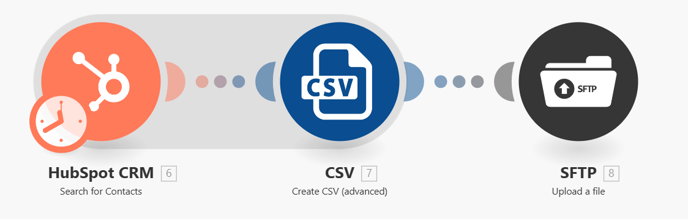
You can create a scenario with the following steps:
- The module linked to your CRM (in the screenshot above, retrieving contacts from Hubspot).
- the Create CSV (advanced) module. This module is used to create a CSV file from the data retrieved by the previous module.
- You need to define the structure of the CSV file you wish to create, as shown in the example below. As a reminder, to import a contact into Journey, only the contact ID and e-mail address are mandatory.
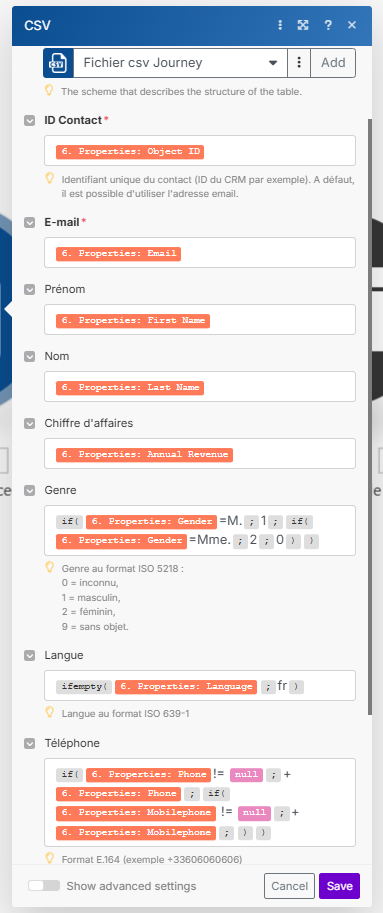
Important: You must respect the formats imposed by Journey for the various data to ensure correct import (gender in ISO 5218 format, language in ISO 639-1 format, phone number in E.164 format).
- You need to define the structure of the CSV file you wish to create, as shown in the example below. As a reminder, to import a contact into Journey, only the contact ID and e-mail address are mandatory.
- SFTP module - Upload a file. Create a connection to tell it how to connect to the Journey directory via FTP:
- Host = deposit-journey.vocaza.com
- Auth type = User name and password
- User Name = the identifier displayed in the Journey automatic import settings
- Password = the password displayed in the Journey automatic import settings
- See additional options and add in Server host keys: rsa-sha2-512.