
Custom metadata allow you to create contact fields specific to your company in order to adapt your surveys to your business needs.
They complement the standard metadata provided by default and make it easier to segment, analyze, and filter results in your surveys and dashboards.
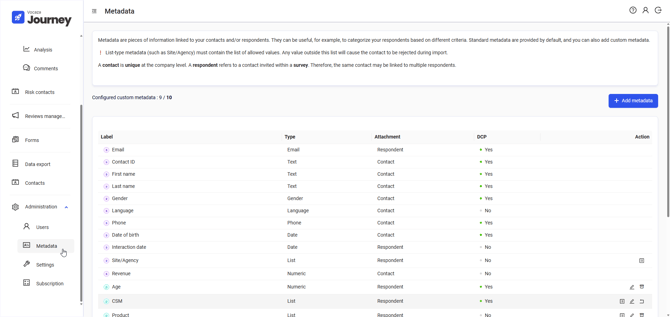
Metadata management is centralized in the following screen: Administration > Metadata
On this screen, you will find:
-
the list of standard metadata,
-
the list of custom metadata.
Custom metadata are:
-
limited to 10 per company;
-
available for all surveys and all users within the same company.
Available types for custom metadata
-
email
-
text
-
date
-
gender
-
list
List-type metadata
List-type metadata allow you to filter your dashboards (e.g. Site, Branch, Customer segment, etc.).
For each list-type metadata, you must define the accepted values for import. These values will then be available as filters in the dashboards.
⚠️ Important
List-type metadata (such as Site/Branch) must contain the list of accepted values.
Any value outside this list will cause the contact to be rejected during import.
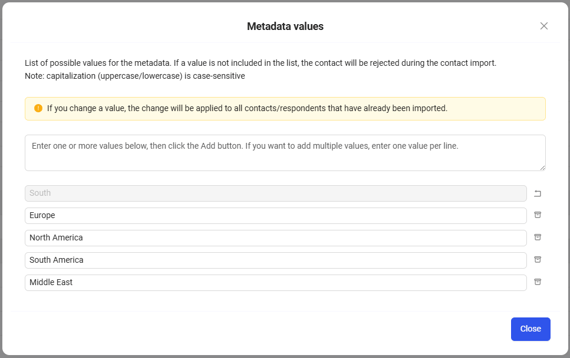
💡 You can copy and paste values directly into the input field, making sure to enter one value per line.
Archiving a custom metadata
You can archive a custom metadata that is no longer used by clicking the “Archive” icon.
Archiving:
-
frees up a slot,
-
allows you to create a new custom metadata.
If the limit of 10 custom metadata has not been reached, you can restore an archived metadata at any time.
⚠️ An archived metadata:
-
remains usable in already configured automatic imports,
-
is no longer available in new “file column <> metadata” mappings (manual imports or new automatic import configurations),
-
is no longer displayed in dashboard filters and exports,
-
is no longer counted toward the maximum number of custom metadata,
-
can be reactivated at any time using the “Restore” icon, only if the limit of 10 custom metadata has not been reached.
Archiving a value from a list-type metadata
You can also archive values from a list-type metadata that are no longer used by clicking the “Archive” icon.
You can restore an archived value at any time.
⚠️An archived value:
-
can no longer be used during imports (→ any contact with this value will be rejected with the error "#column_name#_ACCEPTED_VALUES_EMPTY", see Contact import error management),
-
remains visible in the contact/response history where it was previously used,
-
no longer appears in dashboard and export filters,
-
can be reactivated at any time using the “Restore” icon.