
Only users with an ‘Expert’ or ‘Admin’ profile can create surveys.
- Vocaza Journey allows you to create single-step or multi-step satisfaction surveys
Single-step survey: allows you to assess satisfaction with a single event or service.
Examples: purchasing a ticket, attending a seminar. - Multi-stage survey: allows you to assess satisfaction across multiple stages or services within a single survey.
Examples: a journey involving check-in, boarding and in-flight service; an annual survey of all services offered.
👉 The c - hoice therefore depends on the objective of your survey: to analyse a specific experience or to analyse a complete experience.
Create a satisfaction survey in Vocaza Journey
To create a satisfaction survey, go to the Satisfaction Surveys page and follow these steps:- Click on Create a satisfaction survey.

- In the window that opens, choose between the two options:
- Evaluate an event or service → you will be taken to the configuration of a simple survey (one step).
- Evaluate several steps or services → you will be taken to the configuration of a multi-step survey.
- In the next window, enter:
- The name of your survey
- The semantic analysis model most relevant to your survey (see here for more details)
- The name of the event or service you wish to evaluate for a single-step survey
- The list of steps or services to be measured that you wish to evaluate for a multi-step/multi-service survey
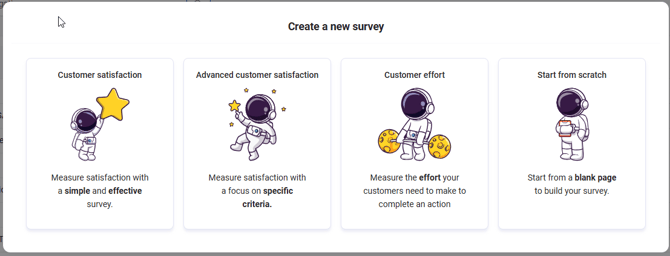
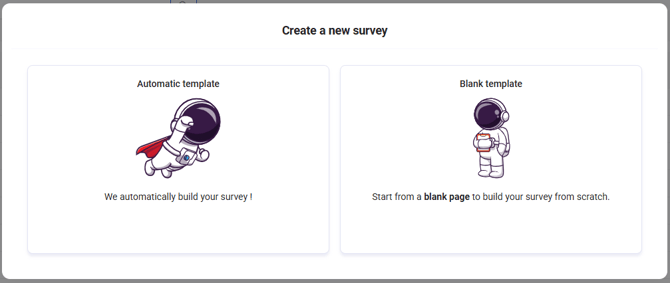
- The next step is to choose your survey template:
- Templates for surveys about an event or service
- Templates for surveys about multiple stages/services
- Templates for surveys about an event or service
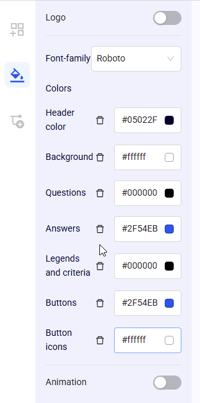
- Once you have chosen your template, you will be taken to the survey editor. Thefirst thing to do is choose the style of your survey. You can customise:
- the logo and its position in the header;
- the colour of the survey banner;
- the type of animation you want between each page;
the font; - the colour of the different parts of your survey.
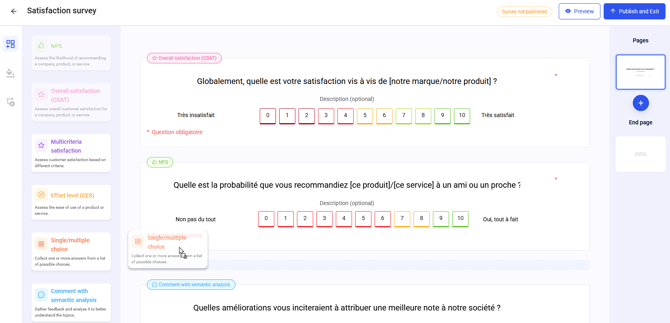
- Next, you can define the content of your survey page by page:
- Click on the question you want to include on your page and drag it to the desired position.
- Note: For multi-step surveys, multi-criteria satisfaction questions, single/multiple choice questions, and effort level (CES) questions must be linked to a step.

- Note: For multi-step surveys, multi-criteria satisfaction questions, single/multiple choice questions, and effort level (CES) questions must be linked to a step.
- To customise the wording and description of a question, simply click on the associated area.
- To customise the appearance, scale type, and mandatory/optional criteria of a question, simply click on the question. The available options will then be displayed below the question.
- Once you have defined your questions on your page, you can configure your other pages, save your draft, or publish your survey.
- Click on the question you want to include on your page and drag it to the desired position.
❗A satisfaction survey in Vocaza Journey must contain:
|
Single-step survey |
Multi-step/multi-service survey |
| at least one page; | at least one page; |
| at least one question of the type Satisfaction, Recommendation or Level of effort; | at least one question of the type Satisfaction, Recommendation; |
| at least one question of the type Comment; | at least one question of the type Comment; |
| at most one Recommendation question; | at most one Recommendation question; |
| at most one Satisfaction question; | at most one Satisfaction question; |
| at most one Level of effort question; | maximum one question per stage Measured service effort level; |
| multi-criteria satisfaction questions, single/multiple choice questions, effort level questions (CES) must be linked to a stage. |